CapCut Pad
- 3.4
- Rating
- 1.00M
- Installs
- Free
- Price
 Analysis by App-foxy
I approached CapCut Pad as a practical video editor rather than judging it by its short store description. It is a free app in the Video Players & Editors category, developed by Bytedance Pte. Ltd., and its main appeal is clear: it is aimed at turning ordinary clips into shareable videos with music, effects, and a more finished look. After spending time with the editing workflow, I found an app that feels most useful when speed matters more than deep manual control.
The important thing is to set expectations correctly. This is not the sort of editor I would choose for a complex film project, detailed color work, or a carefully managed professional production pipeline. I see it as a flexible everyday tool for people who want to trim footage, arrange a few moments, add sound, and produce something presentable without learning a demanding desktop-style interface. That focus gives it real value, but it also explains why some experienced editors may quickly run into its limits.
How CapCut Pad fits into everyday video editing
The app carries an average rating of 3.4 from around 1,200 ratings, while its listing shows more than one million installs and 55 written reviews. Those figures suggest a product with a meaningful audience, but not one I would recommend blindly to everyone. The rating is a useful reminder that convenience and creative control do not always arrive together. Some people will appreciate the quick results; others will want a calmer, more predictable editing experience.
You May Also Like

 Blood Strike: 2.5 Anniversary
Blood Strike’s Loadouts Turn Every Drop Into a Tactical Gamble
A close look at Blood Strike’s custom loadouts: how fast access to signature weapons reshapes its battle royale rhythm, rewards preparation, and narrows the gap between fights.

 Pandora - Music & Podcasts
Pandora’s Music Is Easy to Start, but Harder to Recover
Pandora’s strength is its low-effort path from a seed to a station. Its weak spot is how much confidence it asks you to place in connection, setup, and quiet recovery.

 8 Ball Pool
 Is Built on Rivalries, Rematches, and Routine
A close look at the rivalries, rematches, shared routines, and unanswered safety questions that turn a quick pool match into a persistent mobile community.

 Samsung Music
’s Quiet Strength Is Playing What You Already Own
Its reach comes less from spectacle than from dependable access to a personal library. That simplicity is both the app’s strongest retention engine and its ceiling.

 AccuWeather: Weather Radar
AccuWeather Review: A Quick, Clear Forecast for Everyday Decisions
For everyday plans, the best forecast is the one you can understand quickly. AccuWeather makes rain timing, radar, and local conditions easy to act on, with a few trade-offs.

 Hill Climb Racing
Why Hill Climb Racing Still Turns Crashes Into One More Run
A tiny car, a bumpy hill and one more upgrade: Hill Climb Racing keeps resurfacing because its simple chaos makes every near-miss feel personal.
More From Our News Desk



Its store positioning is simple: capture personal moments and shape them with music and effects. In practice, I think of it as a bridge between the phone camera and a finished social clip. You can start with a family outing, a short trip, a birthday, a cooking attempt, a school activity, or a casual collection of clips from the weekend. Instead of sending a raw sequence, you can give it rhythm and structure.
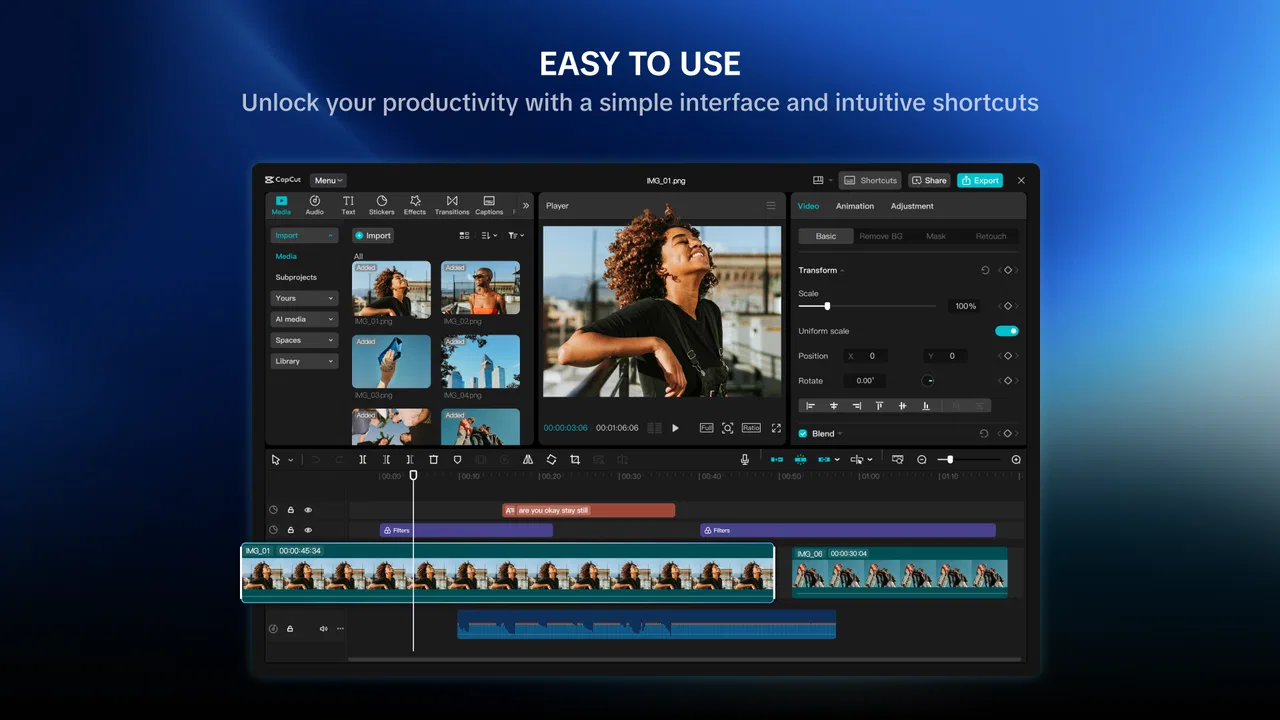
The Pad focus matters because a larger screen can make arranging clips less cramped than it feels on a phone. Timeline work benefits from extra space, especially when I am trying to select a precise section, inspect the order of several clips, or decide where music should change. It does not transform the app into a desktop editor, but it makes the basic workflow easier to see and manage.
My first useful habit with this kind of editor is to decide the purpose of the video before opening the project. A short message to friends needs a different pace from a quiet travel memory. If I collect every clip first and only later decide what the video should say, the timeline becomes cluttered quickly. CapCut Pad is at its best when I enter with a small selection and a clear ending in mind.
What the free access means in practical terms
The listed price is free, so there is no purchase decision required before trying the app. That is a genuine advantage for occasional editors. I can test whether the interface suits me, create a small project, and decide whether it fits my routine without committing money first. For someone who edits only a few times each month, that low barrier may matter more than having every advanced tool available.
At the same time, “free” should be interpreted carefully. It tells me that access to the app does not require a listed purchase price; it does not automatically promise that every possible creative option, export choice, or asset is available without conditions. I would therefore treat the free entry point as a reason to try the workflow, not as proof that it replaces every paid editor.
This distinction is especially important for people choosing software for client work or regular content production. A free tool can be excellent value when it saves time on simple edits, but the real cost may be the time spent adapting to restrictions, checking output, or rebuilding a project elsewhere. For personal videos, that trade-off is usually easier to accept. For paid work, I would test the complete process before making it part of a dependable production routine.
Because the app is rated Teen, parents and younger users should also consider whether the editing environment is suitable for the person using it. The age label is not a quality judgement, but it is relevant when the app is being installed for a child or used on a shared family device.
Where the app delivers the most value
The strongest value comes from reducing the distance between “I recorded something” and “I have a video worth watching.” Music can hide awkward gaps, effects can mark transitions, and a thoughtful sequence can make ordinary footage feel intentional. None of that requires a complicated production. The app is useful precisely because it encourages a finished result instead of leaving clips scattered in the camera roll.
One realistic example is a day trip. I might record a wide view at the beginning, a few short details during the day, and one final shot before leaving. Rather than placing every clip into a long montage, I would keep the opening wide shot, use close details to create movement, and reserve the final clip as a visual conclusion. A restrained music choice can connect the sections, while a small number of effects can signal a change of location without distracting from the memory.
That workflow reveals a non-obvious strength: the app is more valuable when used as a selection tool than as an effects collection. Beginners often assume that a better video needs more transitions. In my experience, removing weak clips usually improves the result more than adding another visual effect. CapCut Pad supports that kind of quick experimentation because I can compare a lean sequence with a crowded one before settling on the cleaner version.
Another useful approach is to create a rough cut before choosing music. When the soundtrack comes first, it is tempting to force every clip to match the beat, even when the images do not belong together. I prefer to establish the visual story, shorten pauses, and then use music to reinforce the mood. This keeps the edit from becoming a collection of effects searching for a purpose.
The app also makes sense for short explanatory videos. A home repair, recipe, craft project, or study demonstration can benefit from a simple order: show the finished result, present the key steps, and close with the outcome. The important trade-off is clarity. Effects and music should support the explanation, not compete with it. In this role, the editor is most useful when I treat it as a communication tool rather than a decoration machine.
Small workflow choices that improve the result
I would begin by creating a project with only the clips that have a clear job. This is more than an organizational preference. A crowded timeline makes every later decision slower, and it becomes harder to notice that the middle of the video is repeating the same idea. Keeping alternate clips nearby but outside the main sequence helps preserve options without letting them dominate the edit.
For spoken footage, I would keep the visual effects modest and pay attention to the relationship between speech and music. A soundtrack that feels pleasant during a silent montage can overwhelm a person talking. Lowering the musical energy, shortening the music section, or using it only at the beginning and end can make the result easier to follow. This is one of the clearest situations where a simple edit looks more polished than a busy one.
I also recommend watching the complete video once without touching the timeline. Editing in tiny fragments can make every cut seem acceptable because I am focused on the current moment. A full uninterrupted viewing exposes a slow opening, an abrupt ending, or a transition that feels unnecessary. That final watch is a practical quality check, especially when the project contains several short clips.
A further tip is to keep a version with the cleanest structure before experimenting heavily. If an effect makes the project feel worse, I can return to the simpler arrangement instead of trying to repair a tangled sequence. This matters for new editors because experimentation is valuable, but experimentation without a fallback can turn a quick task into a frustrating one.
Where the trade-offs become noticeable
The same simplicity that helps beginners can frustrate people who want detailed control. If I need a highly precise edit with carefully managed layers, consistent color treatment, or a more formal production workflow, I would look toward a stronger specialist editor. CapCut Pad is better suited to fast visual storytelling than to a project where every technical detail must be controlled and repeated exactly.
There is also a creative trade-off in relying heavily on music and effects. They can make a basic sequence feel lively, but they can also make different videos start to feel alike. If the goal is a personal memory, too much styling may overpower the actual people and places in the footage. I get better results when I choose one visual idea and repeat it consistently instead of applying a different treatment to every clip.
Storage and attention are practical concerns too. Video projects can become large, and a tablet or phone filled with source clips may make the editing process less comfortable. I would sort the original footage before starting and remove obvious duplicates from the working selection. That does not make the app faster by itself, but it reduces the number of decisions the editor has to present at once.
Users who need a predictable professional handoff should also be cautious. A personal project can tolerate a little experimentation, while a client project may require exact control over the final arrangement and a repeatable process. I would not make CapCut Pad my only tool for important commercial work until I had tested the entire workflow with real source material and confirmed that the final result met the required standard.
Compared with a basic phone gallery editor, this app offers a more deliberate creative path because it is designed around combining clips with music and effects. A gallery editor may be quicker for a single trim or crop, so I would use that simpler option when the task is only to remove the beginning or end of a clip. CapCut Pad earns its place when the project needs several pieces assembled into one coherent video.
Compared with a desktop editor, the advantage is approachability and speed rather than depth. Desktop software is usually the better choice for long timelines, detailed sound work, and productions that need careful technical consistency. CapCut Pad is the better fit when I am editing from a tablet, working with a small number of clips, and trying to finish something without building an elaborate project structure.
Who will get the most from it
I would recommend it to casual creators, families, students, travelers, and anyone who wants to turn camera footage into a short, watchable sequence. It is particularly appealing if the alternative is leaving clips untouched because traditional editing software feels intimidating. The free access makes experimentation reasonable, and the larger Pad-oriented workspace can make timeline decisions more comfortable than a cramped phone interface.
It is also useful for people who need a quick visual message rather than a perfect production. A short invitation, event recap, hobby demonstration, or personal update can benefit from a clear beginning, middle, and end. In these situations, the app’s value comes from helping me complete the task. A finished, modest video is more useful than an ambitious project that never leaves the draft stage.
I would suggest skipping it, or at least comparing it carefully with another editor, if your priority is fine-grained control. Professional editors, filmmakers, and creators who depend on a repeatable technical pipeline may outgrow the convenient workflow. I would also skip it for a one-step trim, since opening a fuller editing environment can be unnecessary when the gallery already handles the job.
People who dislike experimenting with effects may find the app more comfortable if they deliberately ignore the temptation to style every moment. The best experience is not necessarily the one that uses the largest selection of tools. It is the one that gets the intended message across with the least distraction.
Compatibility, version, and what I would check first
The listed minimum operating system is Android 8.0, and the current version shown is 9.3.1. That makes the app accessible to a broad range of Android devices, although compatibility on paper does not guarantee the same editing comfort on every tablet or phone. Screen size, available storage, and general device performance can still affect how pleasant a video project feels.
Before starting an important edit, I would confirm that the device has enough free space for the source clips and the finished project. I would also make a short test video first, particularly if the final result matters. That test answers practical questions quickly: whether the timeline feels comfortable, whether the chosen device handles the project smoothly, and whether the output matches the quality I need.
I would not judge the app solely by its rating or install count. Those figures show that it has attracted attention, but they do not tell me whether its workflow matches my habits. The more useful test is personal: can I select clips quickly, understand the timeline, control the mood, and finish a small project without fighting the interface?
My buy-or-skip verdict
Since the app is free, my verdict is to try it when you want an approachable way to assemble personal videos with music and effects. The value is strongest for short projects, casual sharing, and moments where finishing quickly matters more than mastering a complete editing suite. I would start with a small project rather than a major one, then decide whether the workflow earns a permanent place on my device.
My honest recommendation is simple: use CapCut Pad for fast, expressive edits, but do not mistake convenience for unlimited control. It can help a beginner make better use of ordinary footage, and it can save time when a polished-enough result is the goal. For detailed professional work, a more specialized editor remains the safer choice. For everyone else, especially people who want to turn a handful of clips into something they will actually watch and share, it is a sensible free option to test.
After using it, I would keep my process intentionally restrained: choose the story first, cut unnecessary footage, add music with care, use effects sparingly, and watch the complete result before exporting or sharing. That approach brings out what the app does well while avoiding the most common source of disappointment: expecting a quick tablet editor to behave like a full production studio.
FAQs for CapCut Pad
01What is CapCut Pad, and what can I use it for?
CapCut Pad is the tablet-oriented version of CapCut, a video-editing app designed for creating and refining videos on a larger touchscreen. It typically includes tools for trimming clips, adding transitions, captions, music, filters, effects, stickers, and overlays. The wider tablet layout can make timeline editing more comfortable than on a phone, especially when working with several media elements.
02Is CapCut Pad free to download and use?
CapCut Pad can generally be downloaded and used without an upfront payment, but availability and included features may vary by region, device, and app version. Some advanced effects, templates, stock assets, export options, or editing tools may require a subscription or in-app purchase. Before starting a project, check the pricing page and confirm which features are marked as premium.
03Does CapCut Pad add a watermark to exported videos?
Whether a watermark appears depends on the project, template, export method, and current version of the app. Many standard edits can be exported without a prominent watermark, while certain templates or branded elements may include one unless removed through an available option. It is best to preview the export settings carefully before saving or sharing the finished video.
04Can CapCut Pad edit high-resolution videos and work offline?
CapCut Pad can handle common video formats and may support high-resolution editing, including projects intended for social media or larger displays, but performance depends heavily on the tablet’s processor, memory, storage, and operating-system version. Basic editing may work offline, while templates, cloud projects, online music, automatic captions, and some AI features usually require an internet connection.
05Is CapCut Pad suitable for beginners, and is my content private?
The app is approachable for beginners because its timeline, templates, automatic tools, and guided controls reduce the learning curve. However, advanced features can take time to understand. Privacy-conscious users should review permissions, account settings, cloud synchronization, and the app’s current privacy policy, particularly when using online templates, AI processing, or uploading media to connected services.
Pros
- Tablet-optimized interface makes editing easier on a larger screen.
- Wide range of templates helps create polished videos quickly.
- Supports multi-track editing for more precise control.
- Useful captions
- filters
- stickers
- and transitions are included.
- Export options suit both social media posts and longer videos.
Cons
- Some advanced tools and assets require a paid subscription.
- Performance can drop when editing high-resolution or lengthy projects.
- The large feature set may feel overwhelming for beginners.
- Cloud-based features may depend on a stable internet connection.
- Exported videos may include branding or restrictions on some templates.

CapCut Pad
Gallery